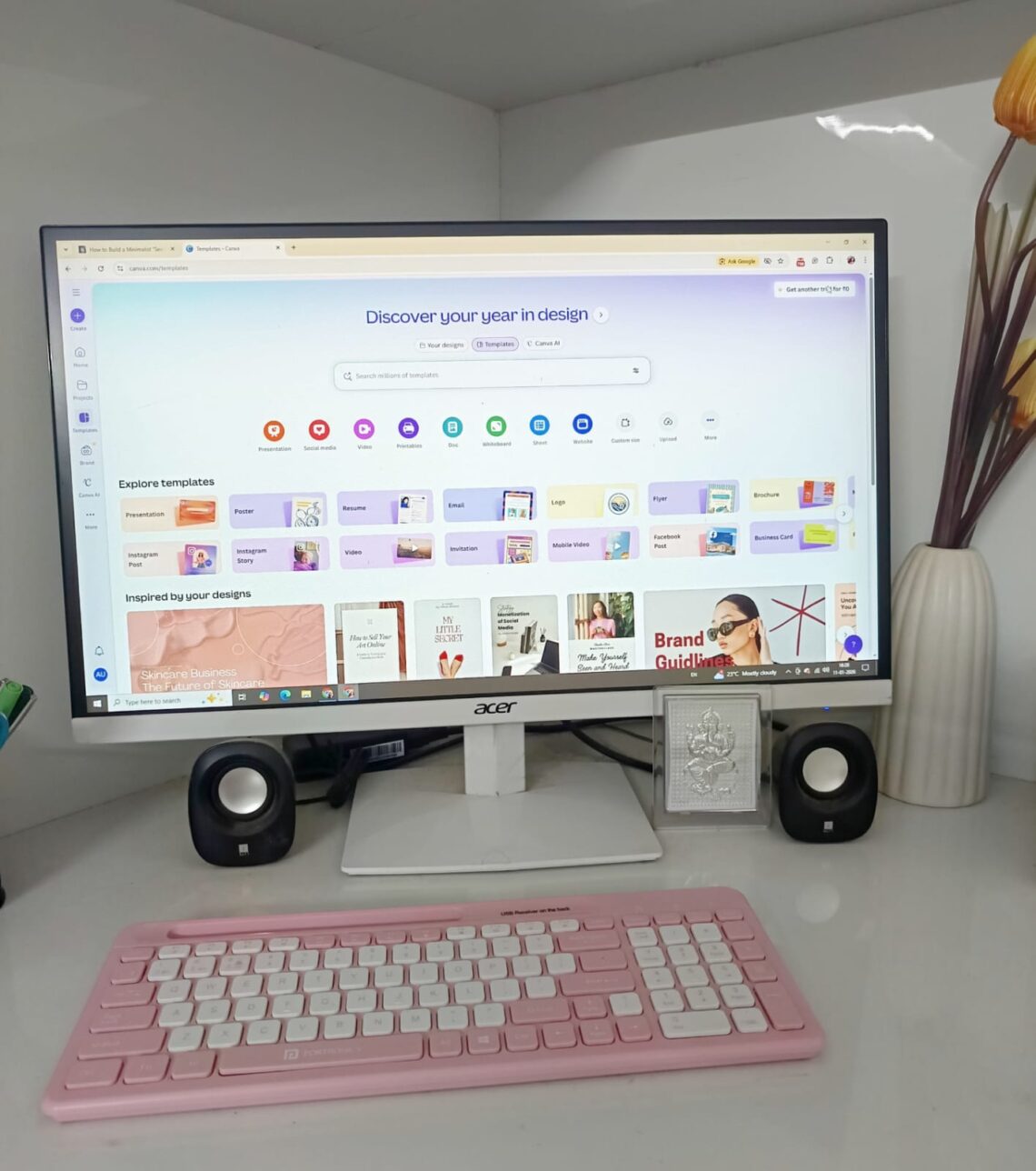
To begin with, designing minimalist client assets does not have to be a time-consuming process. In fact, by using Canva strategically, you can create professional results in half the time. However, many designers struggle to keep their layouts clean and purposeful. Therefore, this guide will walk you through the essential shortcuts and design principles needed for a faster workflow. Furthermore, we will explore how to maintain high quality while working at a rapid pace.
As a solo freelancer, I used to think I needed to master complex design software just to look professional. I spent hours wrestling with layers and tools I didn’t understand, only to end up with “cluttered” results. Then I realized: Minimalism isn’t just an aesthetic; it’s a workflow. In my previous post on Notion, I shared how I organized the “Brain” of my business. Today, I’m sharing the “Heart“ of my creative process. Here is how I use Canva to create high-end client assets in record time without the burnout.
Essential Canva Tools for Fast Design.
To begin with, you should focus on a few key tools that prioritize speed and clean aesthetics. Specifically, these features help maintain the “less is more” look:
- Brand Kits: Initially, set your fonts and colors here to ensure every asset stays consistent automatically.
- Magic Resize: Furthermore, use this to instantly turn one minimalist design into ten different social media sizes.
- Tidy Up Tool: In addition, this is the secret to perfect spacing, as it aligns multiple elements with one click.
- Background Remover: Consequently, you can create clean, distraction-free images without needing Photoshop.
Ultimately, mastering these specific shortcuts allows you to work faster while keeping your designs professional.
The Foundation: Building a Consistent Brand in Canva (The “Manual” vs. “Pro” Way)
In a minimalist workflow, consistency is everything. You want your clients to recognize your work instantly. To do that, you need a “Brand Kit” a set of rules for your fonts and colors.
The Beginner’s “Manual” Hack (Free)
If you are just starting out, you don’t need the paid version to stay organized. I recommend creating a “Brand Cheat Sheet” design: For Example:
- First, Create a single Canva page with your two chosen fonts and three color circles.
- Type the unique color ID numbers (like #F8C3CD) directly under each circle so you can find them easily
- Keep this tab open while you work so you can quickly copy and paste your exact brand shades into any new design. Indeed, it saves time
Ultimately, by following these steps, you will master Canva; therefore, your design process will be faster and, consequently, much more professional.
The Minimalist Freelancer’s Efficiency Comparison
| Task | The Old “Cluttered” Way | The Minimalist Canva Way |
| Visual Style | Guessing fonts & colors every time | Using a “Reference Page” (Free) or Brand Kit (Pro) |
| Editing | Re-uploading files for every typo | Using “Live Embeds” in Notion portals |
| Time Spent | Designing 1 post at a time | Batch Creating 7+ posts in one master file |
| Social Media | Manually resizing for every platform | Using Magic Resizer (Pro) or Templates |
The Professional Workflow (Canva Pro)
As my freelance business grew, I realized that “manual” work was eating my time. This is where Canva Pro becomes a game-changer. With the official Brand Kit feature, your fonts, logos, and colors are automatically embedded into every new design. You no longer have to search for hex codes; they are just there. For a solo freelancer, saving those 5 minutes on every design adds up to hours of reclaimed time every month.
My Minimalist Brand Rules:
- 2-Font Limit: Use one bold heading (like League Spartan) and one readable body font (like Lato).
- 3-Color Palette: One primary, one neutral, and one “pop” color for calls to action.
If you are just starting to define your visual identity, I highly recommend reading this guide on minimalist graphic design by Canva. It helped me understand that ‘white space’ is not empty space, it’s a design choice.
Specifically, Canva’s drag-and-drop interface makes design accessible to everyone; however, mastering the advanced layers takes a bit more practice. In addition to the basic layouts, you can explore the brand kit to stay consistent.
Consequently, your designs will look professionally branded every time. Furthermore, by using the ‘Magic Resize’ tool, you can adapt one design for all platforms. As a result, you save time while maintaining a high quality of work.
2. The Magic Bridge: How to Embed Canva into Notion
One of the biggest “productivity killers” for a freelancer is the endless back-and-forth of emailing files. “Is this the final version?” “Can you send that in a different format?”
I solved this by connecting my Canva designs directly to my Notion Client Portals.
Why “Live Embedding” is a Game Changer:
When you embed a Canva design into Notion, it isn’t just a static image. It is a live link. If you make a tiny change in Canva (like fixing a typo), the image inside your client’s Notion portal updates automatically. No re-uploading, no re-sending emails.
How to do it in 3 steps:
- In Canva: Click the Share button in the top right corner.
- Find the “More” menu: Look for the “Embed” icon (it looks like two brackets
< >). - In Notion: Copy the “Smart Embed” link, go to your Notion page, and paste it. Select “Create Embed.”
Minimalist Tip: Use this for your Project Timelines or Mood Boards. Your client can see the progress of the design in real-time without you ever having to hit “Send”
Batch Creating: The “1-Hour” Content Strategy
Now that your tools are connected, let’s talk about speed. Minimalism is about doing less, better.
For instance, I don’t design every day. I Batch. Instead of opening Canva seven times a week, I open it once on Monday. I use one single Canva document with 7–10 pages. By keeping everything in one file, I can ensure the spacing, font sizes, and “vibe” stay consistent across every single piece of content.
Sometimes it’s easier to see it in action. If you want to see how a pro handles design efficiency, check out this video on Canva Tips & Tricks for Beginners. It’s full of keyboard shortcuts that will save you so much time
Furthermore, batch creating in Canva saves significant time; however, you must stay organized to see the best results. In addition to streamlining your workflow, this method ensures brand consistency; consequently, your social media feed will look more professional.
Ultimately, by planning ahead, you can work more efficiently and, therefore, focus on growing your business
Desktop vs. Mobile: Precision vs. Portability
When designing minimalist client assets, choosing between the web and mobile versions of Canva isn’t just about convenience, it’s a strategic workflow decision. However, while both versions sync in real-time, they offer distinct advantages depending on your stage of design.
A. The Web Version (Desktop): Your Precision Powerhouse
The web version is the gold standard for initial creation and precision.
- Precision Control: Using a mouse or trackpad is essential for minimalist designs where the “white space” and alignment must be pixel-perfect.
- Workflow Speed: You have access to keyboard shortcuts (like
Lfor a line orTfor text) that make designing significantly faster. - Advanced Features: Complex tasks like Magic Resize (batch resizing for multiple platforms) and setting up detailed Brand Kits are much more intuitive on a large screen.
B. The Mobile Version (App): The On-the-Go Refiner
The mobile app is your best friend for quick edits, approvals, and social media prep.
- Live Camera Integration: You can snap a high-quality photo of a product and drop it directly into a template, a feature the desktop version can’t match natively.
- Mobile-Exclusive Filters: Interestingly, app often features exclusive filters and a more touch-friendly “Advanced” adjustment menu for quick photo styling.
- Direct Social Posting: The app allows you to share or schedule posts directly to Instagram without the extra step of transferring files from a computer.
Consequently, mastering these Canva shortcuts ensures that your minimalist designs remain both high-quality and incredibly fast to produce.
Feature Breakdown—Desktop Precision vs. Mobile Agility
| Feature | Canva Web (Desktop) | Canva Mobile (App) |
| Best For | Heavy design, layout, & precision | Minor edits, snapping photos, & sharing |
| Shortcuts | Full keyboard support | Limited gesture-based controls |
| Screen Space | Maximum visibility for alignment | Compact; harder to see small details |
| Photo Assets | Upload from drive/cloud | Live camera & mobile filters |
| Efficiency | Faster for building from scratch | Faster for client approvals on-the-go |
Neverthless, while the desktop version offers the ultimate control for building your minimalist foundations, shifting our focus toward the mobile app allows for seamless final adjustments.
The Ultimate Canva Masterclass: This is a deep dive (1 hour+) that covers everything from the basics to advanced design secrets. Bookmark this for your next ‘study session.
Conclusion: Less Designing, More Doing Overall, “At the end of the day, Canva is awesome tool which helps to create great visual. The goal of a minimalist workflow isn’t to spend more time in the app, it’s to spend less time so you can get back to serving your clients.
In fact, By setting up a simple Brand Kit and batching your work, you stop being a ‘struggling designer’ and start being an efficient business owner. Consequently, using Canva is a great choice; moreover, it simplifies design, therefore ensuring every project looks professional.
Furthermore, it is important to realize that these tools work best when used together. In addition to saving time, they ensure that your professional voice remains consistent across all platforms. However, you must be willing to practice regularly to see the best results. Consequently, your workflow will become much smoother over time. Therefore, I encourage you to start implementing these transition techniques today. Ultimately, the goal is to make your content more readable and engaging for everyone
What’s your biggest struggle with design? Let me know in the comments, or if you need help setting up your own minimalist portals, get in touch with me here

