If you are a remote manager or a freelancer, your biggest enemy is not your workload; it’s the mental clutter. For a long time, my work was a mix of sticky notes, WhatsApp chats with clients, and twenty open browser tabs. I was working, but I was not organised at all.
The Solution: I realized to work peacefully, I needed to simplify my digital life as much as my physical one. I needed a “Second Brain”, a single place to store every idea, deadline, and brand asset. That is when I moved everything to Notion.
I first learned about the ‘Second Brain’ concept from Tiago Forte, and I adapted his system to fit my minimalist freelance life.
In this post, I am pulling back the curtain on my actual workspace. I will show you how I use Notion to automate my remote team tasks and why it is the only tool I haven’t deleted in three years. Whether you are a solo creator or managing a team of ten, this setup is designed to give you your focus back.
My Freelance Workflow Before and After Notion
| Task | The “Old” Way (Clutter) | The Notion Way (Minimalist) |
| Onboarding | 10+ Emails & WhatsApps | One “Client Portal” link |
| Planning | Sticky notes & Phone alarms | One Master Calendar view |
| Workflows | Manual data entry | One-click Template buttons |
| Approvals | Sending PDF attachments | Live Canva embeds |
By automating my admin work, I’m able to dedicate 100% of my focus to my clients. If you have a project in mind, feel free to Reach Out Here
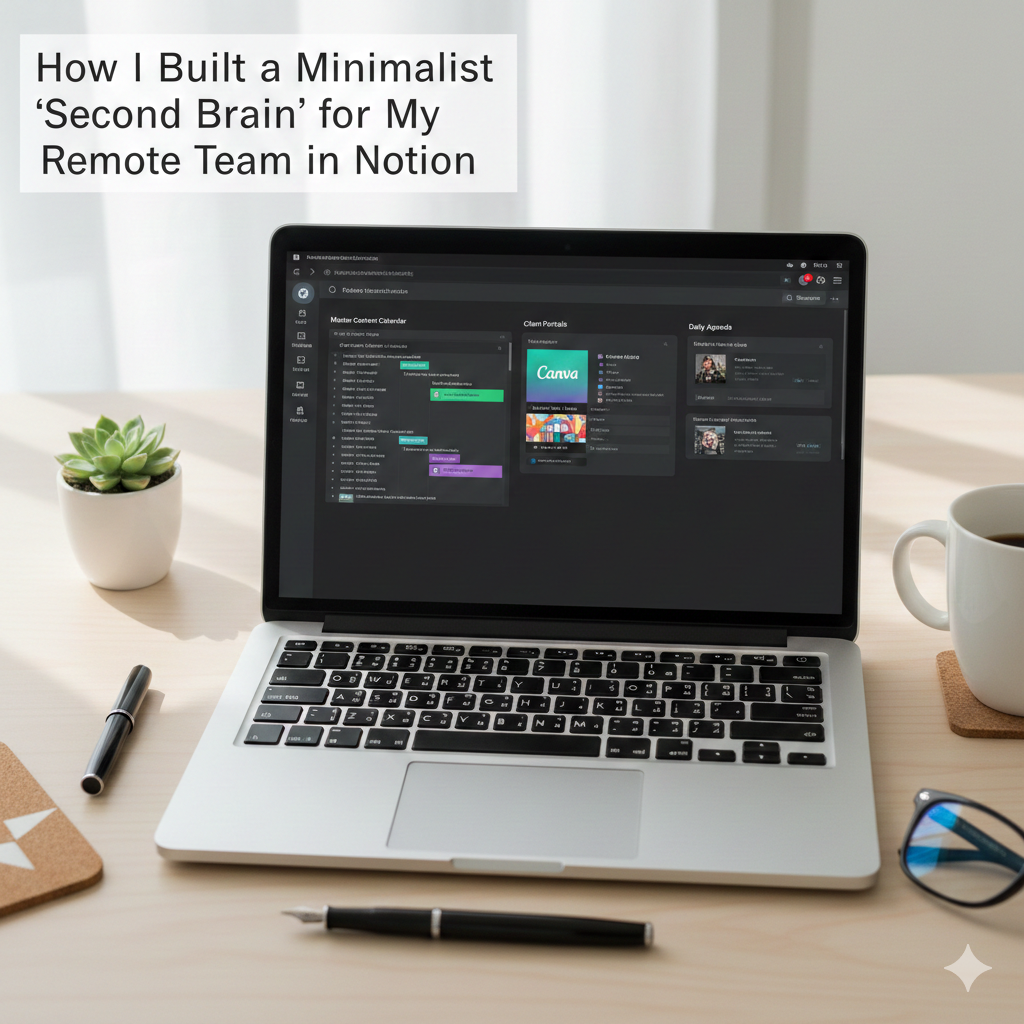
The Core Setup: 3 Pillars of a Minimalist Workspace
A minimalist setup isn’t about having zero pages; it’s about having the right pages. When I designed my “Second Brain,” I stripped away the complicated templates and stuck to three pillars that keep my remote team moving.
1. The High-Level Dashboard (The “Compass”)
Every morning, I open my “Today View.” This is a filtered database that shows only the tasks due today.
- Why it works: It prevents “scrolling fatigue.” Instead of seeing 50 pending items, I only see the 3 things that actually matter right now.
- Minimalist Tip: Hide all your sidebars and properties that you don’t use. If it doesn’t help you finish the task, it’s just noise.
2. The Global Content Calendar (The “Production Line”)
As a Social Media Manager, I manage content for multiple platforms. I use a Master Database with a “Board View” (Kanban style).
- Status Tags: I use simple tags like Idea, Researching, Drafting, and Scheduled.
- Automation: I’ve set up a “Template Button” so that with one click, a new blog post draft is created with my pre-set SEO checklist ready to go.
3. The Client Portal (The “Transparency Hub”)
This is where the “Remote Team” magic happens. Instead of back-and-forth emails, I share a specific Notion page with my clients.
- What’s inside: It holds our contract, brand guidelines, and a “Gallery View” of the latest designs I’ve made in Canva.
- The Result: It cuts down my “Status Update” emails by 80% because the client can see the progress in real-time.
How I Manage a “Business of One”
Since I don’t have a team, I have to be my own manager, my own designer, and my own assistant. If I don’t automate my workflow, I run out of time to actually create.
Here is how I use Notion as my “Silent Partner” to handle the work of three people
1. The “Single Source of Truth”
As a freelancer, the biggest risk is losing information in different places. I have one Master Database for every single client. Whether it’s a quick thought for an Instagram caption or a formal contract, it goes into Notion immediately.
- The Benefit: I never have to search through WhatsApp or my inbox to find what a client asked for. Everything is one “Search” (Cmd+P) away.
2. Scaling Without a Team (Templates)
I use Notion Templates to “clone” myself. I have a “New Client Onboarding” template. With one click, it generates:
- A project timeline.
- A list of assets I need from them.
- A content approval gallery.
- The Result: Tasks that used to take me an hour now take 30 seconds. This is how I handle multiple clients without needing to hire an assistant.
3. Managing “Deep Work” vs. “Admin”
Minimalism isn’t just about my desk; it’s about my calendar. I use Notion’s Calendar View to block out “Deep Work” sessions for writing. By seeing my month at a glance, I can see when I’m over-scheduled and say “No” to new projects before I feel overwhelmed.
Before Notion, I spent 5 hours a week just on ‘admin’ work. Now, I spend about 30 minutes, giving me more time to focus on my writing.
How I Use Notion and Canva Together.
As a solo freelancer, I don’t have time for the “email back-and-forth.” My secret weapon is embedding live Canva designs directly into my Notion Client Portals.
The “Smart Embed” Workflow
Instead of downloading a design from Canva and uploading it to Notion every time I make a change, I use the “Live Embed” feature.
- How it works: In Canva, I grab the “Smart Embed” link and paste it into Notion.
- The Magic: If I change a color or fix a typo in Canva, it automatically updates inside the client’s Notion page. My clients always see the latest version without me ever hitting “save” or “send.”
Linking to the Real World: Google Calendar
To stay on track, I also sync my Notion databases with Notion Calendar (which connects directly to my Google Calendar).
- When I set a deadline for a social media post in Notion, it shows up on my phone’s calendar instantly.
- This bridge between my planning (Notion) and my time (Google Calendar) is what allows me to handle multiple clients without a team.
I use this specifically for my Client Social Media Drafts. It makes the approval process 10x faster because the client can leave comments directly next to the live design.
If you’re more of a visual learner, I highly recommend this Notion masterclass by Productive Dude. It helped me understand how to link my databases when I was first starting out.
Conclusion: Less Noise, More Focus
Building a “Second Brain” in Notion isn’t about making a fancy dashboard that looks good on Instagram. It’s about creating a system that stays out of your way. As a solo freelancer, my time is my most valuable asset. By moving my admin, planning, and client communication into one minimalist space, I’ve stopped “managing” my business and started growing it.
If you’re feeling overwhelmed by your current workflow, my advice is simple: Start small. You don’t need a 50-page template. Start with one dashboard, one calendar, and one goal: to clear the mental clutter.
I’m curious, what is the one part of your freelance workflow that feels the most “cluttered” right now? Is it your client emails, your content planning, or just keeping track of your daily tasks?
Drop a comment below and let’s talk about how to simplify it!
P.S. In my next post, I’ll be diving into the creative side of my business: How I design all my client social media assets in record time using Canva. Stay tuned!
Work with me: I help solo-entrepreneurs and brands stay minimalist and productive. Contact me for a consultation.

